
How to Check Azure Red Hat OpenShift (ARO) Load Balancer Health Probe Status and Filter by Specific Port
Environment
- Azure Red Hat OpenShift (ARO)
- 4
- Red Hat OpenShift Container Platform (RHOCP) on Azure
- 4
Issue
- My ARO load-balancer seems not reachable, how can I check if the load-balancer port is healthy?
Resolution
Introduction
Azure Load Balancer utilizes health probes to monitor the status of your instances. If an instance fails to respond to a health probe, the Load Balancer ceases to direct new connections to that instance. This article provides instructions on how to check the status of health probes through the Azure portal and how to filter the metrics for a specific load balancer port's health probe status.
Checking Health Probe Status
Follow these steps to access the status of health probes:
- Sign in to your account on the Azure portal.
- From the left-hand menu, select "All resources".
- Click on the Load Balancer resource for which you want to check the health probe status.
- In the Load Balancer resource's left-hand menu, under "Settings", click on "Health probes".
You will now see a list of all health probes configured for your Load Balancer, along with their configurations. Please note that the Azure portal does not directly provide the status of these health probes.
Monitoring Health Probe Status with Azure Monitor
To monitor the health of your Load Balancer, follow these steps:
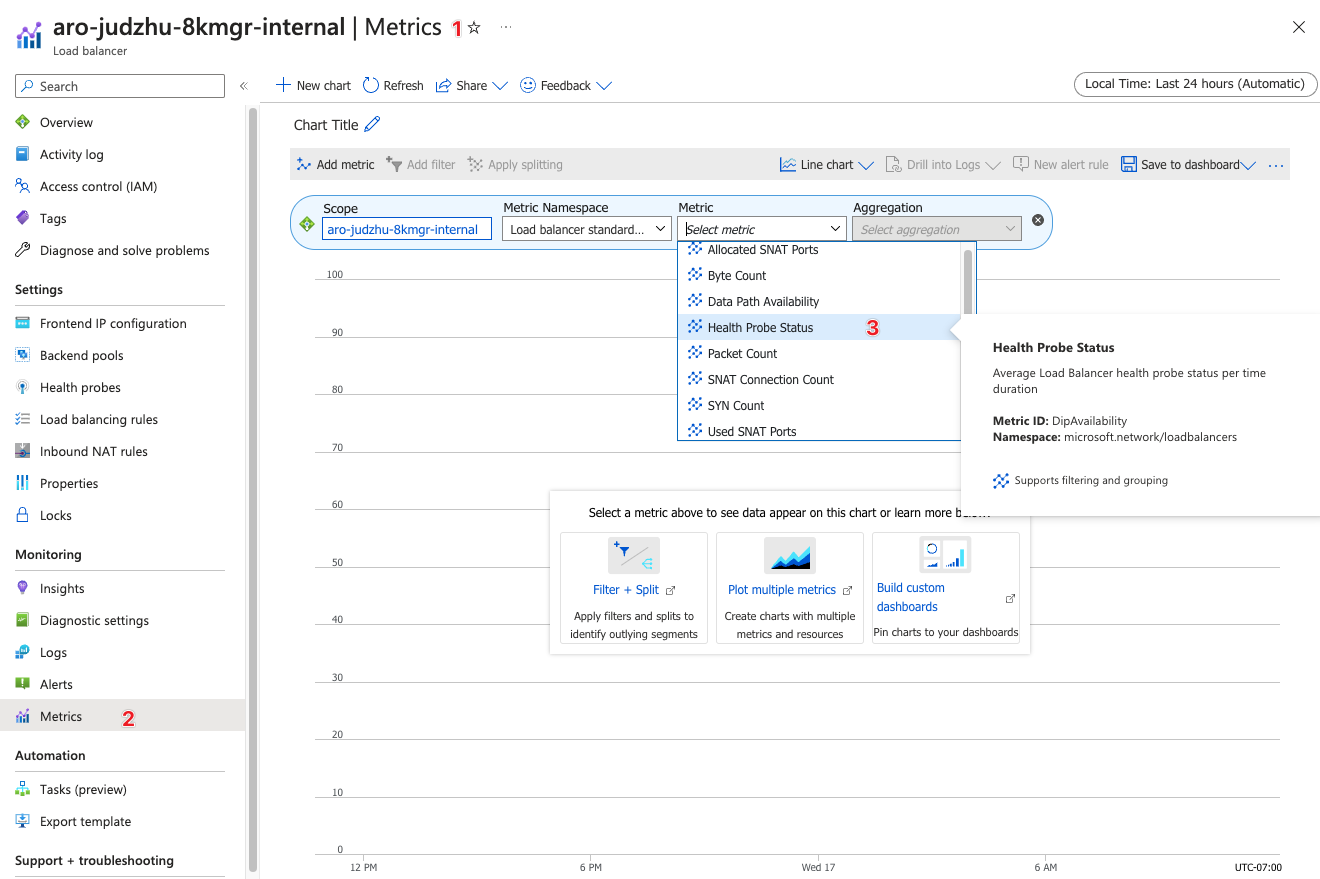
- In the Load Balancer resource's left-hand menu, under "Monitoring", click on "Metrics".
- On the chart, select the "Health Probe Status" metric.
- Specify the time range and the aggregation (Average, Minimum, Maximum, or Total).
Filtering Health Probe Status by Specific Port
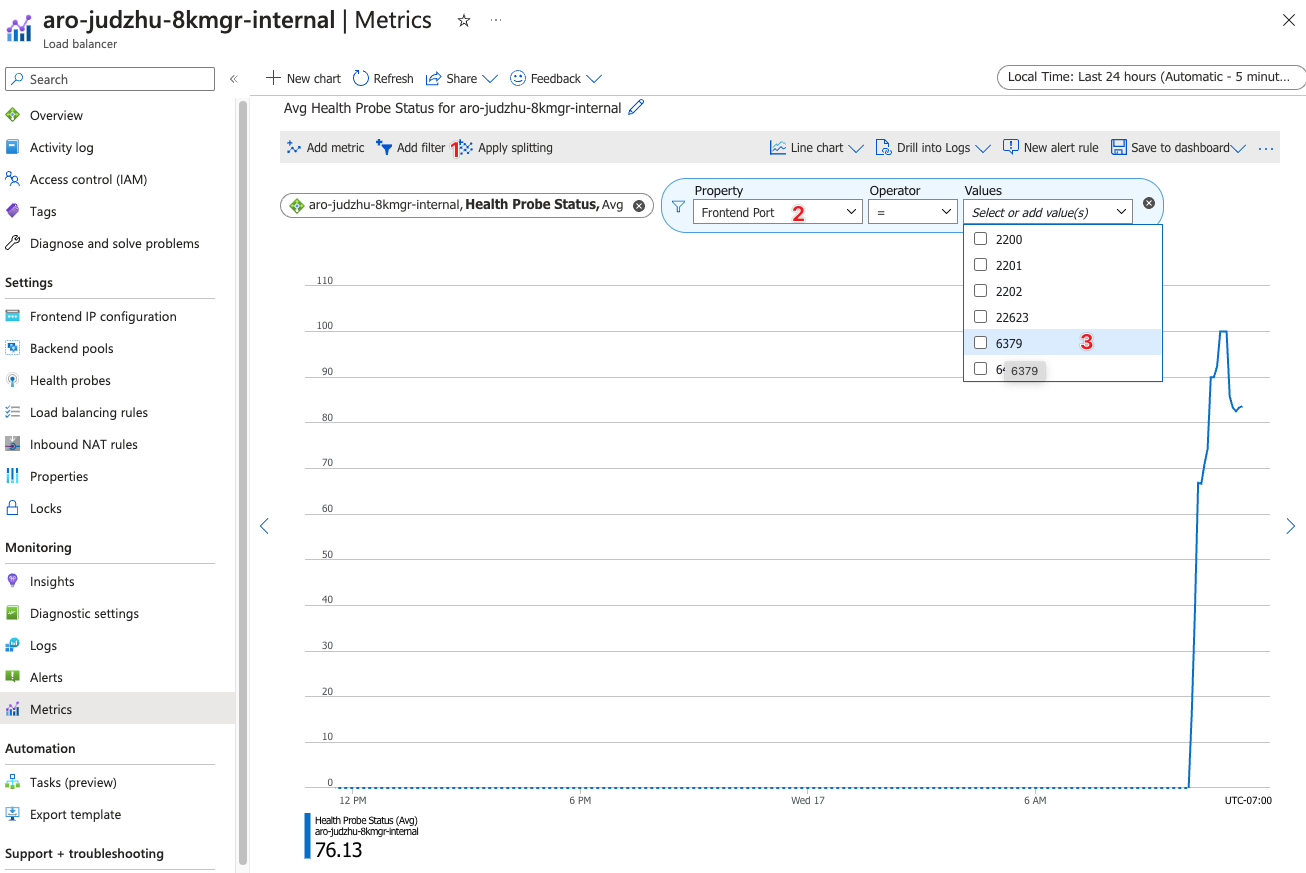
When viewing the "Health Probe Status" metric, you can filter the results by specific ports as follows:
- Under the "Metrics" section, find and click on the "Add filter" button.
- A drop-down menu will appear. Select "Frontend Port" from the options.
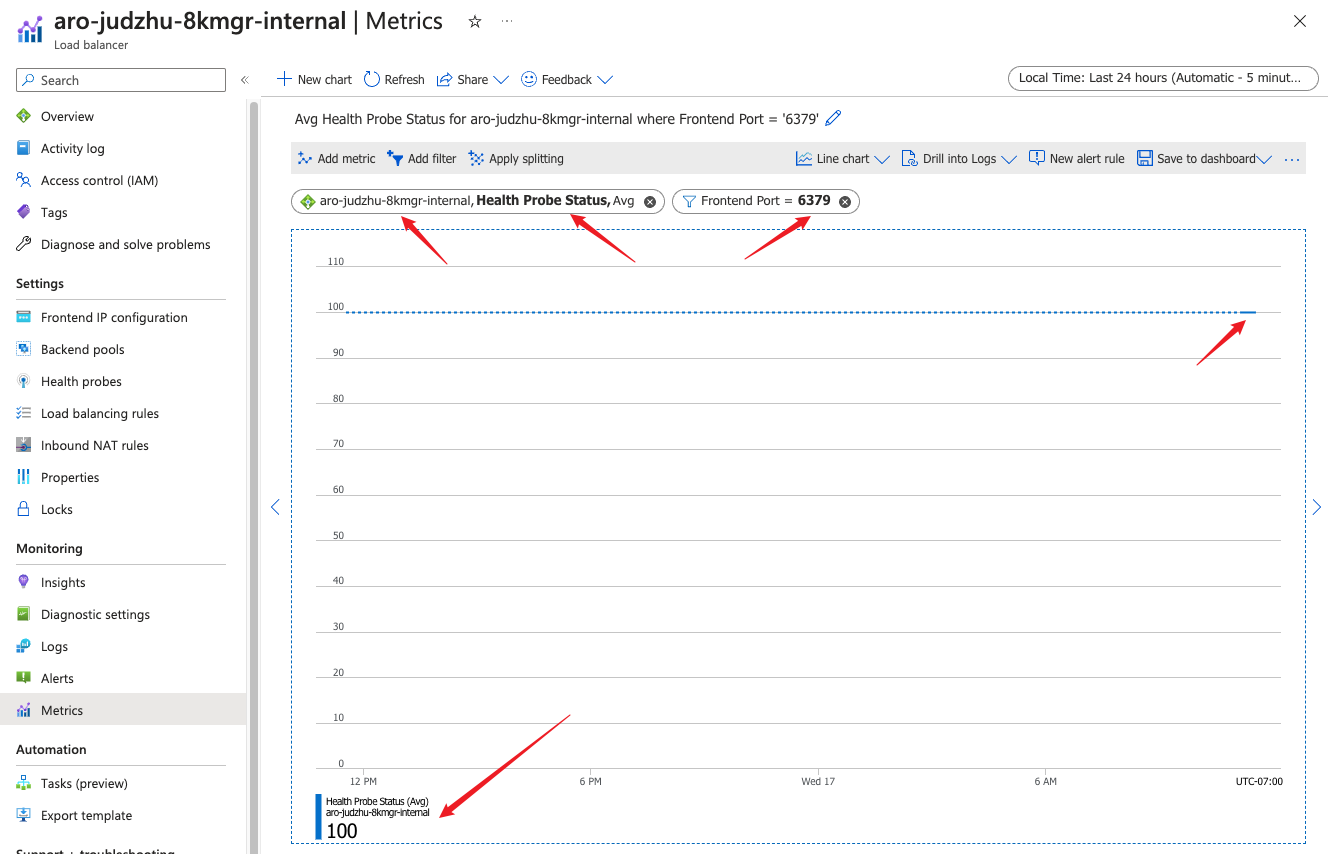
- Select the specific port number you wish to filter, e.g. 6379 for Redis service.
The metrics chart will now reflect the health probe status for the specified port only.
Conclusion
Monitoring the health probe status is essential to ensure the efficient operation of your Azure Load Balancer. Always refer to the official Azure documentation or use Azure CLI help commands for the most accurate and up-to-date information.
Remember, Azure CLI (the az command) does not have a built-in command to check the health probe status directly. The methods outlined in this KCS are the recommended ways to view and filter health probe statuses.
This solution is part of Red Hat’s fast-track publication program, providing a huge library of solutions that Red Hat engineers have created while supporting our customers. To give you the knowledge you need the instant it becomes available, these articles may be presented in a raw and unedited form.

Comments