
Create and Build OpenShift 3 Applications in JBoss Developer Studio
Table of Contents
Red Hat JBoss Developer Studio's OpenShift 3 Tooling allows users to create, import, and modify OpenShift 3 applications and then set up manual or automatic builds for changes to the new applications as follows:
- Create a New OpenShift 3 Application Using a Template
- Import an Existing OpenShift 3 Application into JBoss Developer Studio
- Build an Application
- View an Existing Application in a Web Browser
- Delete an OpenShift Project
Create a New OpenShift 3 Application Using a Template
Use the New OpenShift Application wizard to create OpenShift applications from default or custom templates. Using a template to create an application is useful because the same template can be used to create multiple similar applications with different or identical configurations for each of them.
Note: To learn more about using and creating templates with OpenShift 3, see Using Templates with OpenShift 3
-
In JBoss Central, click OpenShift Application.
-
If required, in the New OpenShift Application wizard, sign into your OpenShift server and click Next.
-
Click the Manage Project link. If there are no previously created projects on the server, the
Create OpenShift Projectwizard displays the fields to create a new project. -
In the OpenShift Projects window, click New and enter the following project details:
a. In the Project Name field, type a name for the project. Project names must be alphanumeric and can contain the character “-” but must not begin or end with this character.
b. In the Display Name field, type a display name for the project. This name is used as the display name for your project in the OpenShift Explorer view and on the OpenShift website after the project is created.
c. In the Description field, type a description of the project.
d. Click Finish.
-
In the OpenShift Projects window, click OK.
-
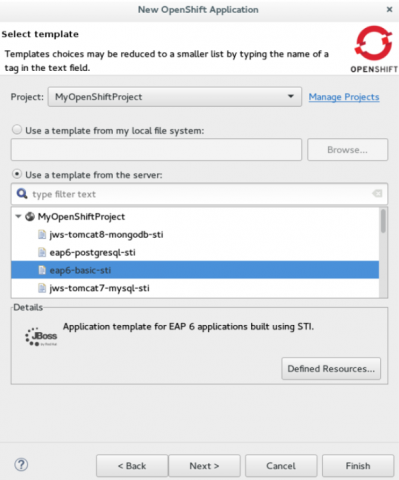
In the New OpenShift Application window, enter the following details:
a. Ensure that the Project field displays the name of the relevant project.
b. To use a template from the server, click Use a template from the server and select the relevant template. You can also use the type filter text field to search for specific templates.
c. To use a custom template from your local machine:
i. Click Use a template from my local file system and click Browse.
ii. Select the template and click OK to continue.
-
Click Next.
-
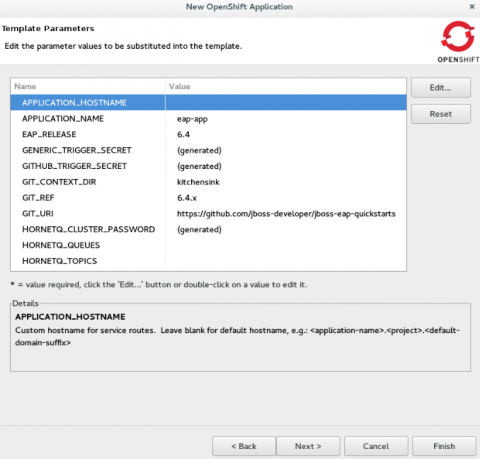
In the Template Parameters window, confirm the parameter values and click Next.
Important: Ensure that you have push access to the repository mentioned in the GIT_URI parameter field so that you can push the local changes to the OpenShift server. It is recommended that you fork the original Git repository and replace the default GIT_URI value with the URL of your forked repository.
-
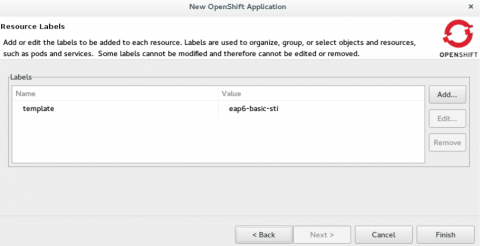
In the Resource Labels window, confirm the labels that you want to add to each resource. You can also click Add or Edit to add labels or edit the existing ones.
-
Click Finish.
-
Review the details and click OK in the Create Application Summary window.
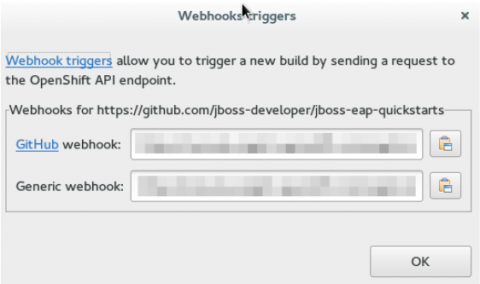
In the Create Application Summary window, click the link to obtain the build trigger webhook and use it to automate the build process. A GitHub specific webhook is available for project sources hosted on GitHub. A generic Git webhook is available for other Git repositories.
For detailed steps to set up GitHub webhooks, see Build an Application Automatically.
Result: The application appears in the Project Explorer view. To view the application in a web browser, in the OpenShift Explorer view, expand the connection and then expand Routes, right-click the specific resource and then click Show In > Web Browser .
Import an Existing OpenShift 3 Application into JBoss Developer Studio
Note: Only an application that has its source specified in the build config file can be imported in the workspace.
Applications associated with your OpenShift account(s) are listed in the OpenShift Explorer view. The source code for these applications can be individually imported into the IDE using the OpenShift Tools Import OpenShift Application wizard. Once imported, the user can easily modify the application source code, as required, build the application and view it in a web browser.
To import an existing OpenShift 3 application as a new project in the existing IDE workspace:
-
In the OpenShift Explorer view, ensure your OpenShift connection is listed or click the connection icon (
 ) and enter your OpenShift account details to create a new connection.
 -
In the OpenShift Explorer view, expand the connection to locate the application to import.
-
Right-click {project name} and click Import Application.
-
In the Import OpenShift Application wizard's Existing Build Configs list, click the application that you want to import and click Next.
-
Ensure the location in the Git Clone Destination field corresponds to where you want to make a local copy of the OpenShift application Git repository and click Finish.
Result: The application is listed in the Project Explorer view.
Build an Application
The user can either build the application manually or use the GitHub webhooks to build it automatically. Building applications automatically makes the build process quicker. Also, if set to build automatically, the application build process is triggered every time a change is made to the application source code without you having to remember to build it manually.
Build an Application Manually
To build an application manually:
-
In the OpenShift Explorer view, expand the connection, then expand the {project_name}, and then expand Build Configs.
-
Right-click the application name and click Start Build.
Result: The Builds folder in the OpenShift Explorer view shows the status of the build.
Build an Application Automatically Using Git Webhooks
JBoss Developer Studio allows you to either build OpenShift 3 applications manually (Build an Application Manually) or build them automatically by easily setting up Git webhooks. Since OpenShift 3 does not provide a Git repository that can directly push the changes to the OpenShift server, one of the ways to automatically trigger a build is setting up Git webhooks to push any changes made to a project file, in the workspace, and to build the application automatically. By setting up webhooks, you can configure your GitHub repository to make a webhook call whenever you want to push the changes made to a project file in a workspace.
To add a webhook to your GitHub repository:
-
In the OpenShift Explorer view, expand the connection and then expand Build Configs.
-
Right-click the Build Configs resource and then click Show Webhooks.
-
Copy the webhook in the GitHub webhook field.

-
In the Webhooks triggers window, click the GitHub link to navigate to the GitHub repository.
-
Click Settings.
-
In the Options section, click Webhooks & services and then click Add webhook.
-
In the Payload URL field, paste the copied webhook and then click Add webhook.
Result: A Git webhook is now set up to trigger automatic builds for your OpenShift 3 application.
View an Existing Application in a Web Browser
To view an application in the internal web browser, after it has been successfully deployed, in the OpenShift Explorer view, right-click the application, and click Show In > Web browser.
Result: The application displays in the built-in web browser.
Delete an OpenShift Project
You may choose to delete a project from the workspace to make a fresh start in project development or after you have concluded development in a project. All resources associated with a project get deleted when the project is deleted.
To delete an OpenShift 3 project:
-
In the OpenShift Explorer view, expand the connection to locate the application you want to delete.
-
Right-click {project name} and click Delete Project.
-
In the OpenShift project deletion window, click OK.
Note: To delete more than one project (and the containing applications), in the OpenShift Explorer view, click the project to select it and while holding the Shift key, select another project that you want to delete and then press Delete.
Result: The selected project is now removed.
Did You Know
- Scale the project deployment, using the context menu for the service (the first node below the project). You can also scale the deployment from the Properties tabs of a deployment (replication controller) and deploymentconfig.
- View the rsync output in the Console view. You can also see the progress of the file transfer after you publish local changes to OpenShift.
- When using a custom template to create a project, in the New OpenShift Application wizard, Local templates tab, you can select a URL to base your project on.

Comments